
MinUI: A Minimalist Retro Gaming Launcher
Guide and Review of MinUI on the Trimui Brick
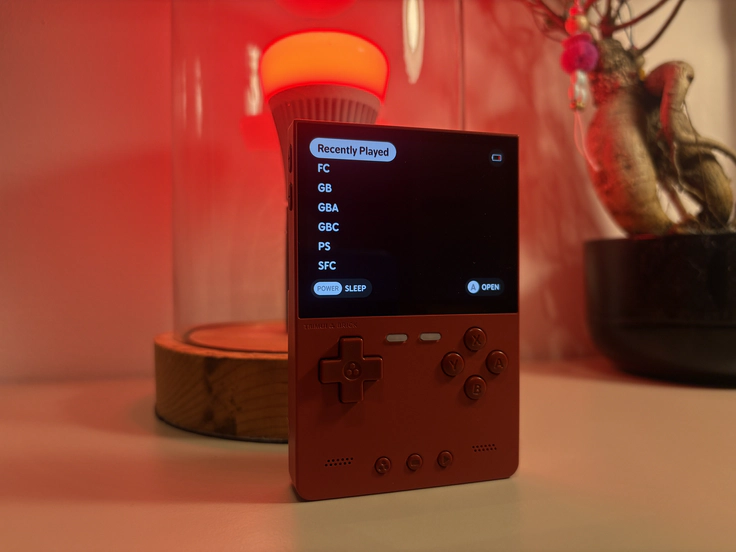 MinUI: simple, functional, and stylish for retro gaming.
What is MinUI?
MinUI, as the name suggests, is a minimalist user interface (UI). It looks simple yet exudes a certain elegance. Think of it as the interior of a Tesla: clean, functional, and highly appealing. However, don’t let the simplicity of MinUI fool you; behind its minimalist appearance lies a surprisingly robust set of options and features.
MinUI is designed as a sleek launcher and libretro frontend for retro handhelds. It delivers an efficient and streamlined experience, allowing you to launch games quickly and effortlessly. The minimalist design not only enhances user-friendliness but also gives devices like the Trimui Brick a premium feel. It’s the perfect choice for gamers who value simplicity without compromising on performance or features.
MinUI on the Trimui Brick
MinUI feels tailor-made for the Brick. Its sleek, straightforward interface perfectly complements the premium gaming experience. Combined with the Brick’s robust hardware, the device bridges the gap between the Miyoo Mini Plus and higher-end systems like the Analogue Pocket.
What Can MinUI Do?
Despite its simple interface, MinUI offers an impressive array of features ideal for retro gaming. Here are some of its standout functionalities:
- Clean file browsing: Files are automatically filtered to hide hidden items and unwanted extensions, leaving you with a neat and organized list of available games.
- Quick access to in-game functions: A consistent in-emulator menu makes it easy to manage save states, swap disks, and access other emulator options.
- Power management: MinUI includes smart power-saving features. The system automatically enters sleep mode after 30 seconds of inactivity and fully shuts down after two minutes to conserve battery life.
- Auto-resume: If the device powers off during gameplay, MinUI allows you to pick up right where you left off after rebooting.
- Flexible storage: The same SD card can be used across multiple devices from different manufacturers, offering unparalleled flexibility for users with multiple handhelds.
- Direct save state access: You can load manually created save states directly from the launcher by pressing ‘X’ instead of ‘A.’
With these features, MinUI is not only practical but also a versatile solution that elevates retro gaming. Whether you’re a casual gamer or a hardcore retro enthusiast, MinUI provides a user-friendly and polished experience.
Installation
This installation guide is tailored for the Trimui Brick but works equally well for the following devices:
- Anbernic RG28xx
- Anbernic RG34xx
- Anbernic RG35xx
- Anbernic RG35xx Plus
- Anbernic RG35xxH
- Anbernic RG35xxSP
- Anbernic RG40xxH
- Anbernic RG40xxV
- Anbernic RG CubeXX
- GKD Pixel
- M17
- MagicX XU Mini M
- MagicX Mini Zero 28
- Miyoo A30
- Miyoo Flip
- Miyoo Mini
- Miyoo Mini Plus
- Powkiddy RGB30
- Trimui Smart
- Trimui Smart Pro
Steps
-
Download the files
Visit the official GitHub page and download:MinUI base .zipMinUI extras .zip
-
Prepare your files
Extract the files and create a new folder for your device. For the Trimui Brick, name the folderminui-for-trimui-brick.
Copy the following folders and files from thebasefolder into this new folder:BiosRomsSavesTrimUIREADME.txtem_ui.shMinUI.zip
From the
extrasfolder, copy everything into the same folder. Overwrite files if prompted. -
Format the SD card
Insert the SD card into your computer and format it to FAT32.- On Mac: Open Finder, right-click on the SD card, and format to FAT32. Name the card
MinUI. - On Windows: Follow similar steps via Disk Management.
- On Mac: Open Finder, right-click on the SD card, and format to FAT32. Name the card
-
Move files to the SD card
Drag the contents of theminui-for-trimui-brickfolder to the formatted SD card. -
Install MinUI
Insert the SD card into your Trimui Brick. Let the device boot up and complete the installation process. -
Add games
- Download ROMs only from trusted sources. Check out Itch.io for cool new games — most are free to download, but you can also choose to support the developers with a donation.
Itch.io
Get the ROM files and organize them into folders (e.g.,
SNESfor Super Nintendo). Move these folders into theRomsfolder on your SD card.
- Download ROMs only from trusted sources. Check out Itch.io for cool new games — most are free to download, but you can also choose to support the developers with a donation.
Itch.io
Get the ROM files and organize them into folders (e.g.,
-
Enjoy MinUI
Insert the SD card back into your device and explore the intuitive interface and wide selection of retro games.
Do a little victory dance and share this awesome guide with your friends on Reddit or social media!
If this post helped you, I’d greatly appreciate it if you shared it with your friends or community. And if you’re in the market for a modded GBC, GBP, SNES, or another retro device, be sure to check out my webshop retrogear.nl
-XXX-
Jorne